Beacon Ads (internal)
Last Updated: 6/17/2026 12:03
This overview document is intended as "skeleton key"—after reading it, the reader should have everything they need to know to run ads in The Beacon in the event the usual person who runs it is unreachable. In its current state, it is only 70% finished, but it is also intended as a living document so information will change over time, as needed.
Table of Contents
- Quick Overview of the Ad Process
- Broadstreet: what it is, how we use it
- Ad Zones: what they are, how they're named, where they show up (in process)
- Ad Sizes/Content: ad dimensions, guidelines and recommendations for copy and images
- Non-Profit Ad Limitations: What to know before asking for sponsorship (coming soon)
- Ad Rates: general tiers, specific tiers (ad variations), terms
- Advertising Philosophy: (coming soon)
- Generating Reports for Sponsors (coming soon)
- Sponsor Payments (coming soon)
- How to create an Ad Campaign (walkthrough: video & image snapshot) (coming soon)
- Special Ad scenarios: Single Article ads, Category Page Ads, Entire Site ads, Time-Specific Ads (coming soon)
- Legal Restrictions To know About:
- Reference Links: Broadstreet Login page, Ad Rate download, etc.
Quick Overview of the Ad Process
The ad process essentially follows these steps:
- Set up the Advertiser's account, if needed.
- Select the Ad Zone(s) to advertise in.
- Select the Ad Type (banner, sidebar, etc.) appropriate to chosen Ad Zones.
- Select advertisement dimensions appropriate to chosen Zones.
- Collect art & copy to create an ad brief for the sponsor.
- Generate an ad preview for sponsor signoff.
- Create an ad campaign to set a date range and ad page placement.
- Collect payment from sponsor.
- Run ads.
- Set reminder on calendar* to check back in with sponsors as their payments comes due.
* We have yet to set up an ad calendar with contact names and numbers, but that will become mission critical over time, unless there someone is frequently checking the ad dashboard.
Broadstreet: Who - What - Why, etc.
Broadstreet is The Beacon's ad server. Broadstreet has injected invisible HTML code onto all of The Beacon's webpages, which we should never need to fiddle with. We simply go to Broadstreet's website to create new ads and edit/delete old ads. All ads on our website (or newsletter) are then served automatically.
(N.B. As of 3/3/2026, our newsletter template still needs to be set up to include newsletter ads. Update: 5/1/2026 all newsletter ads are on hold until we get web site ads running.)

Ad Zones AKA Zone ID#
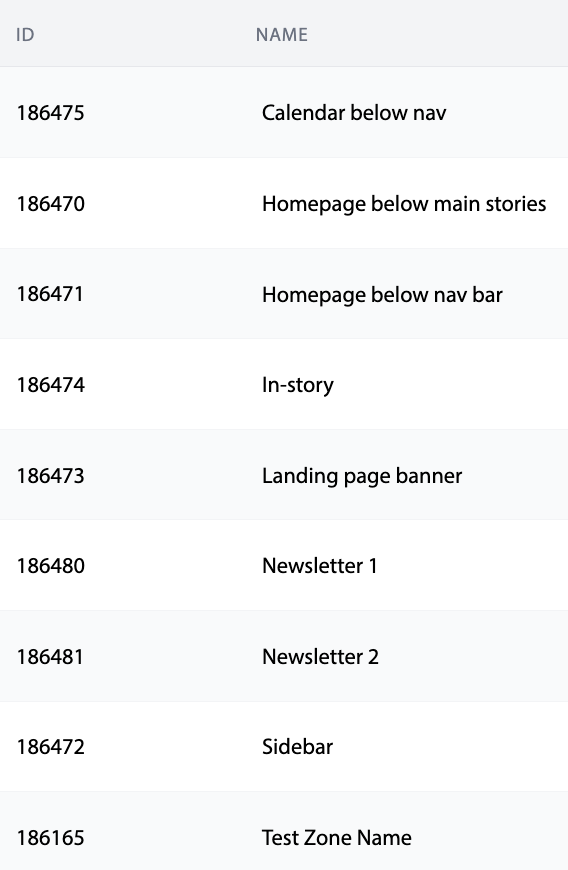
Alongside a sponsor's preferred budget and type of ad they want to run, sponsors will need to decide where their ads will show up.
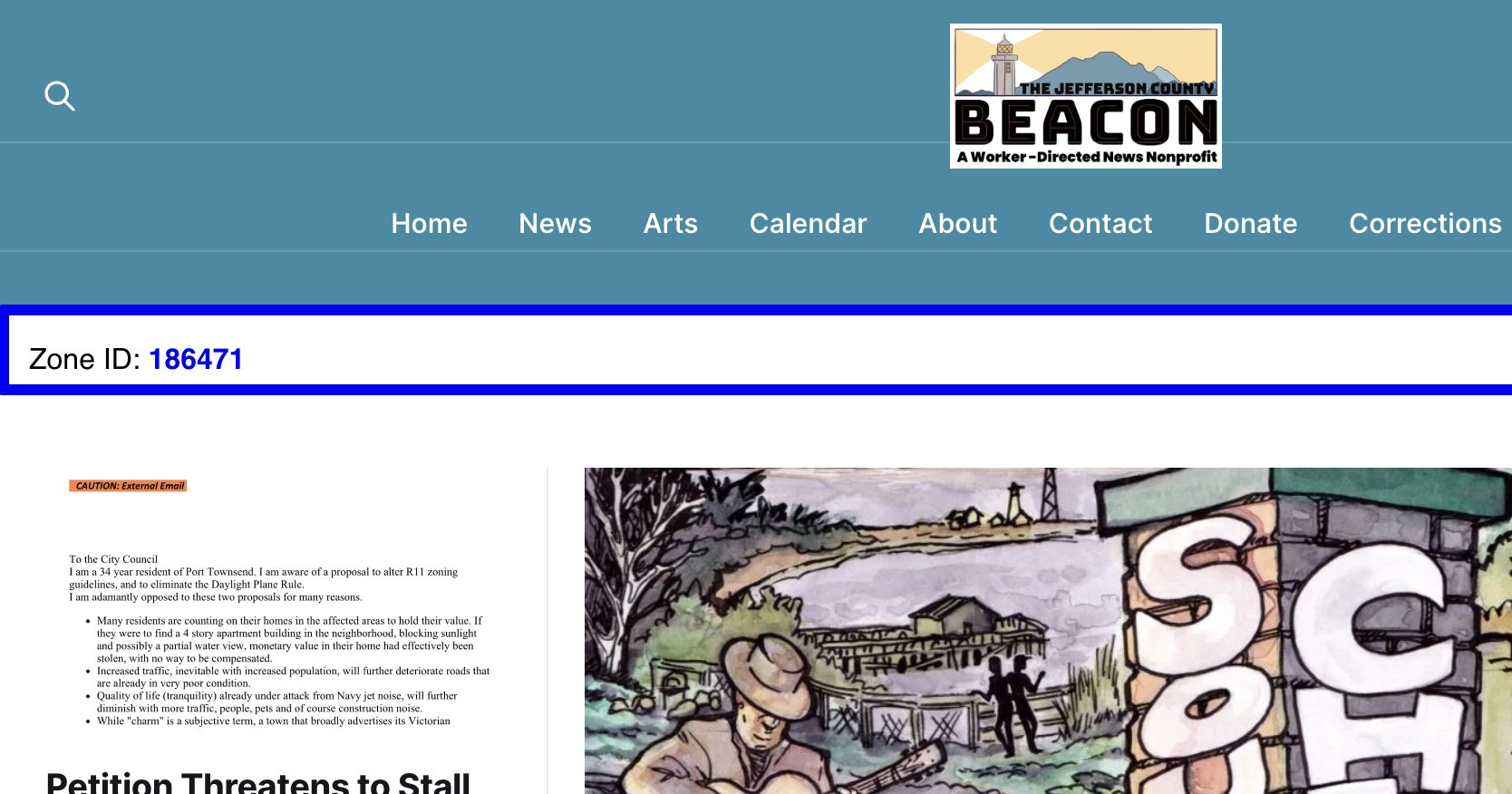
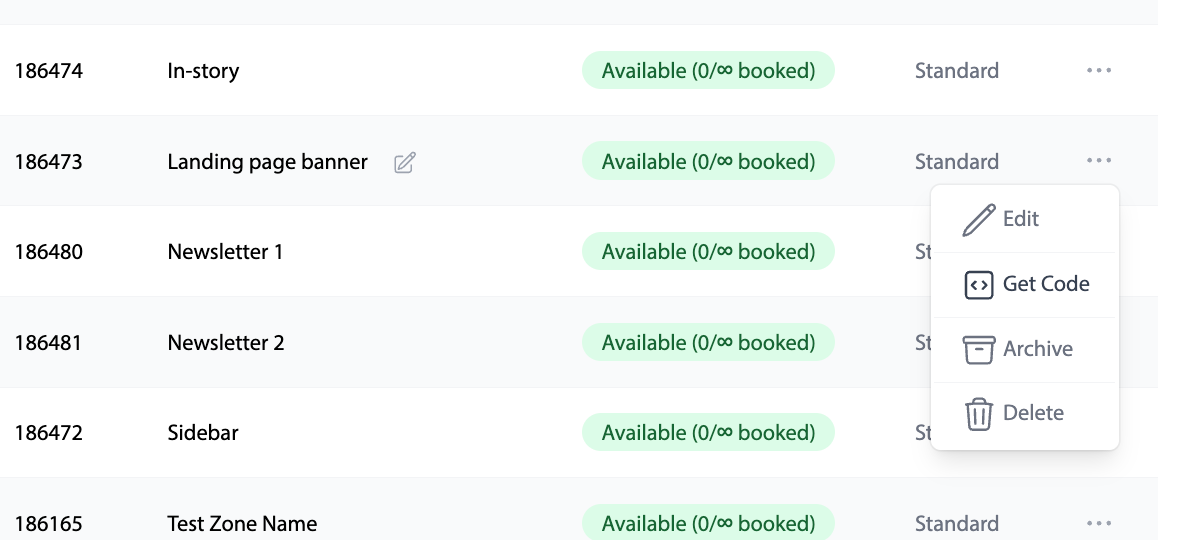
These are called ad "zones". The snapshot below is taken from Broadstreet on 3/3/2026. I've included each Zone's ID# so we can all refer to them without ambiguity even if the ad zone's name ever gets changed.
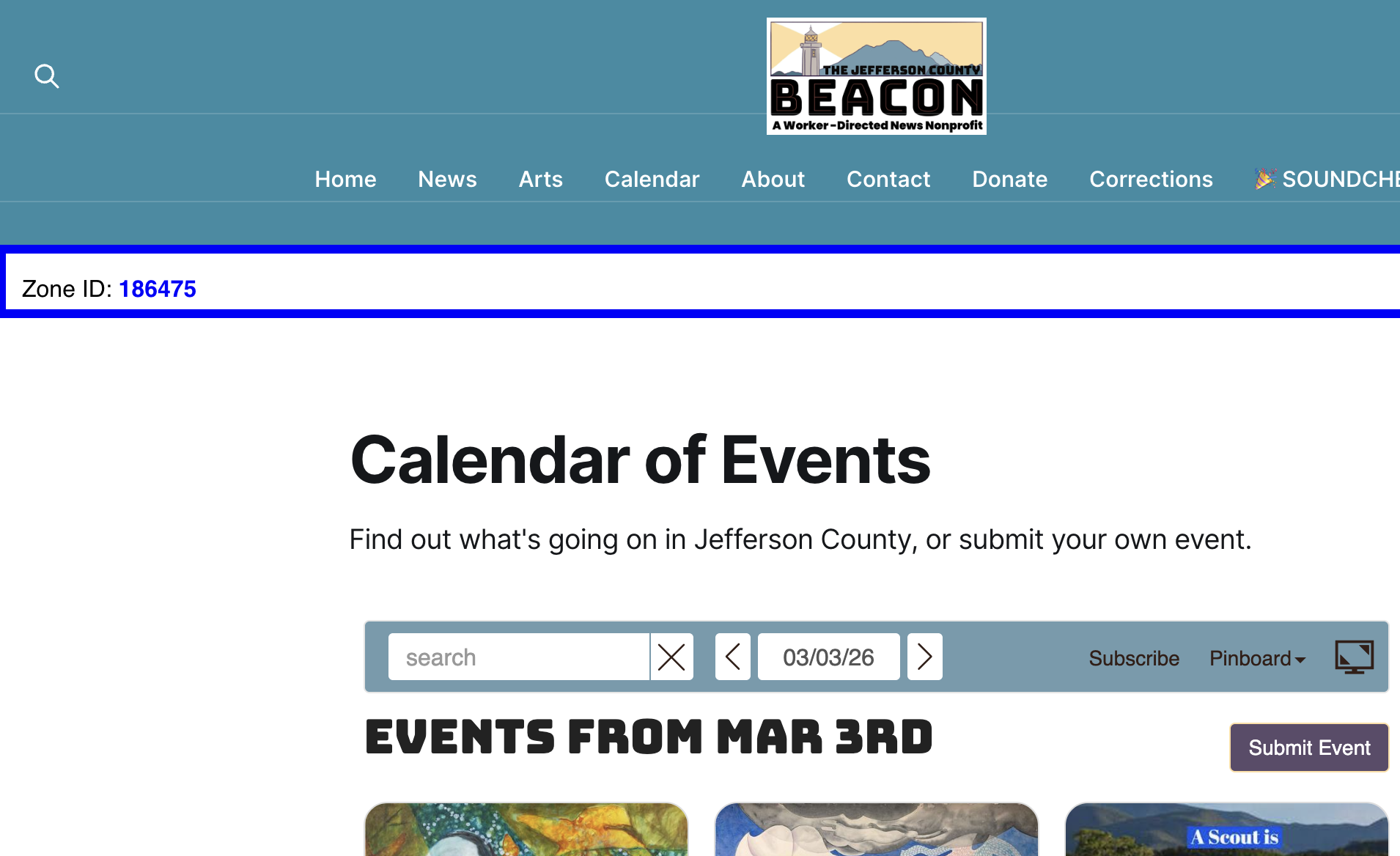
Calendar before nav (...475)
Only shows up on the calendar page, above the calendar, but directly beneath the top navigation bar. Ideal ad dimensions: horizontal banners. Ideal ad content: upcoming events (e.g., "Come meet Beacon staff at The Pourhouse this Friday").
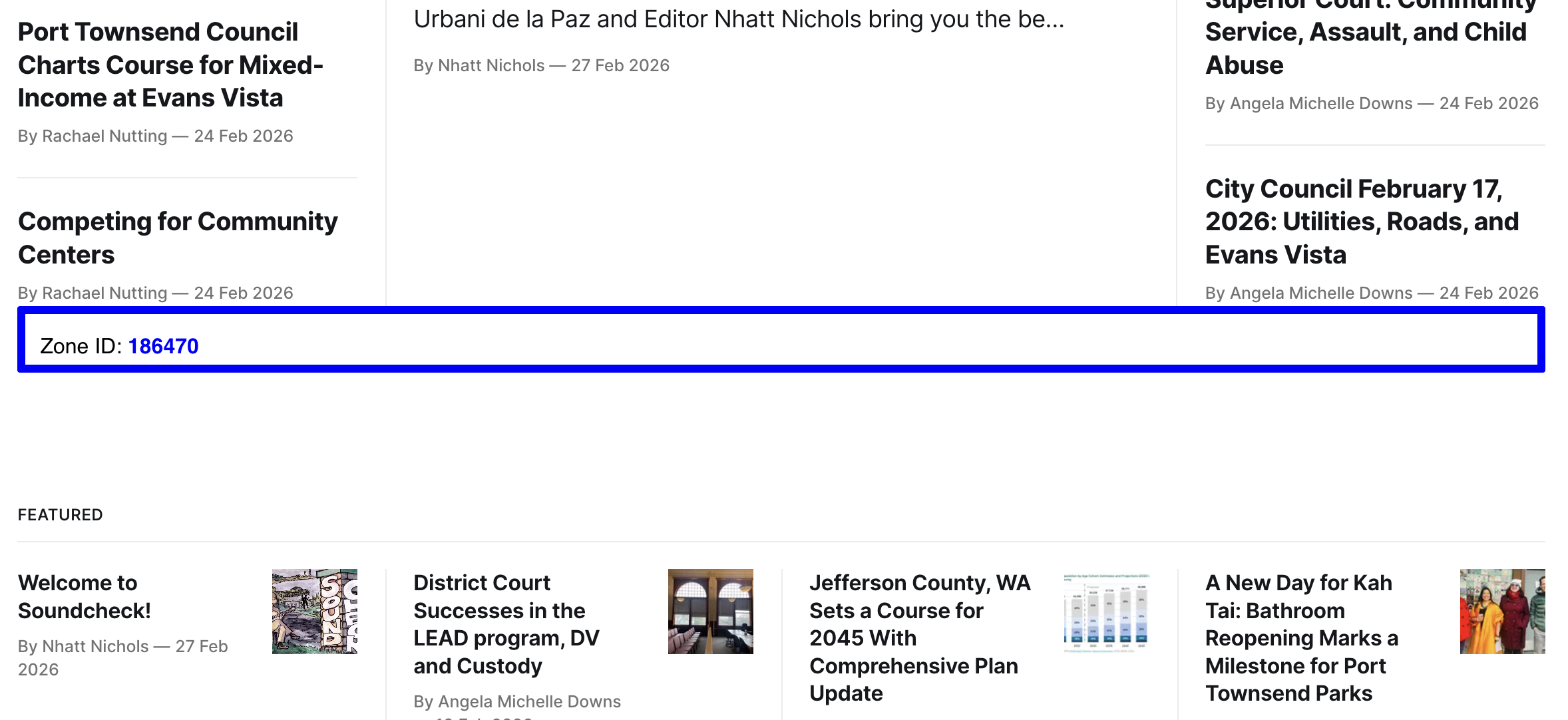
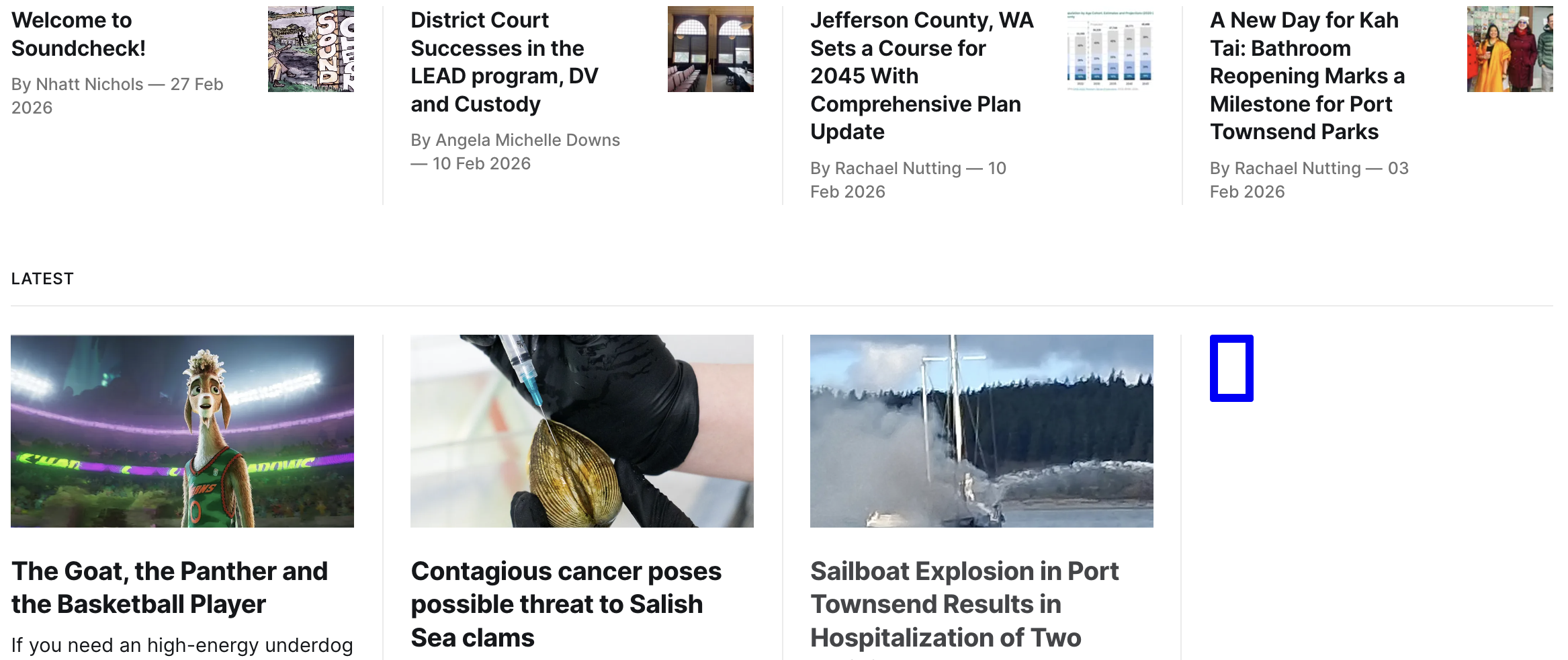
Homepage before featured stories (...470)
The area directly above the featured stories on the homepage, but below directly beneath top stories on the page. Ideal ad dimensions: horizontal banners/Email signups. Ideal ad content: Engagement (e.g., "subscribe to The Beacon").
Homepage beneath nav bar (...471)
The area directly below the homepage navbar, but above top stories on the page. Ideal ad dimensions: horizontal banners/Email signups. Ideal ad content: Engagement (e.g., "subscribe to The Beacon").
In-story (...474)
Appears after the fifth paragraph of any story across the entire site. Ideal for: premium ad/horizontal banners/large ads. Ideal content:
Landing Page Banner (...473)
These are specifically targeted ads, as needed. They aren't ads that show up any any page, but give you more control on where ads might show up. For example, an ad might only be put on two or three pages, so you would paste code on that page to make this specific ad show up there.
(Snapshot to come)
Detailed instructions will follow, but basically, to run a Landing Page Banner ad, it is done in three steps:
- Create the ad on Broadstreet, as usual.
- On Broadstreet, get the HTML code for the Landing Page Banner.
- On Ghost, inject HTML code where you want that specific ad to show up.
How to place a Landing Page Banner Ad on Ghost
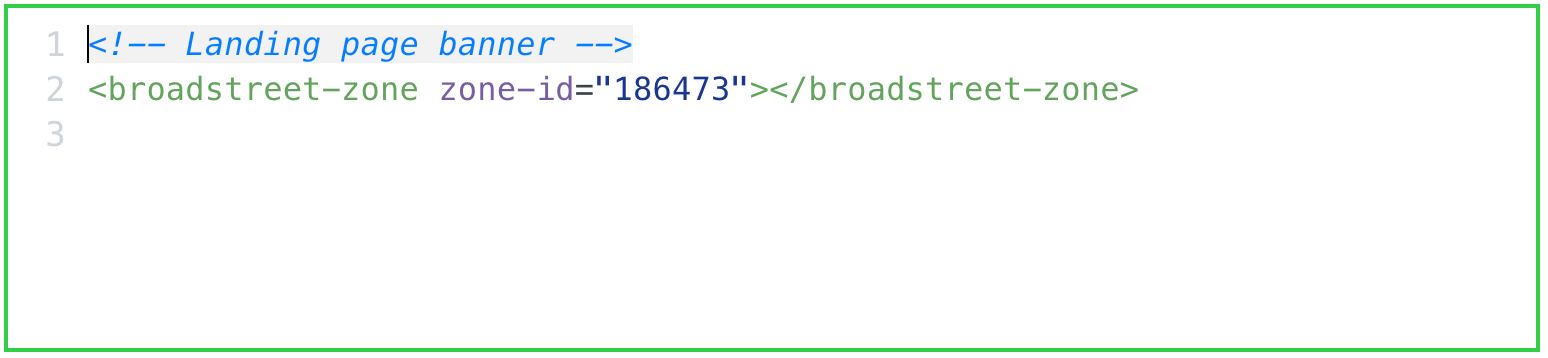
Below is an example HTML code you copy from Broadstreet and paste onto a Ghost page. Wherever this code is pasted on a page, that Landing Page Ad will appear. This is ideal for banners but there appears to be no limit on dimensions so it's possible to have a large premium ad in this ad zone, too.
1. Where to find the Ad Zone code on Broadstreet
Open up the Zones menu on Broadstreet and click on the three grey dots on the right side of the screen. Select "<> Get Code".
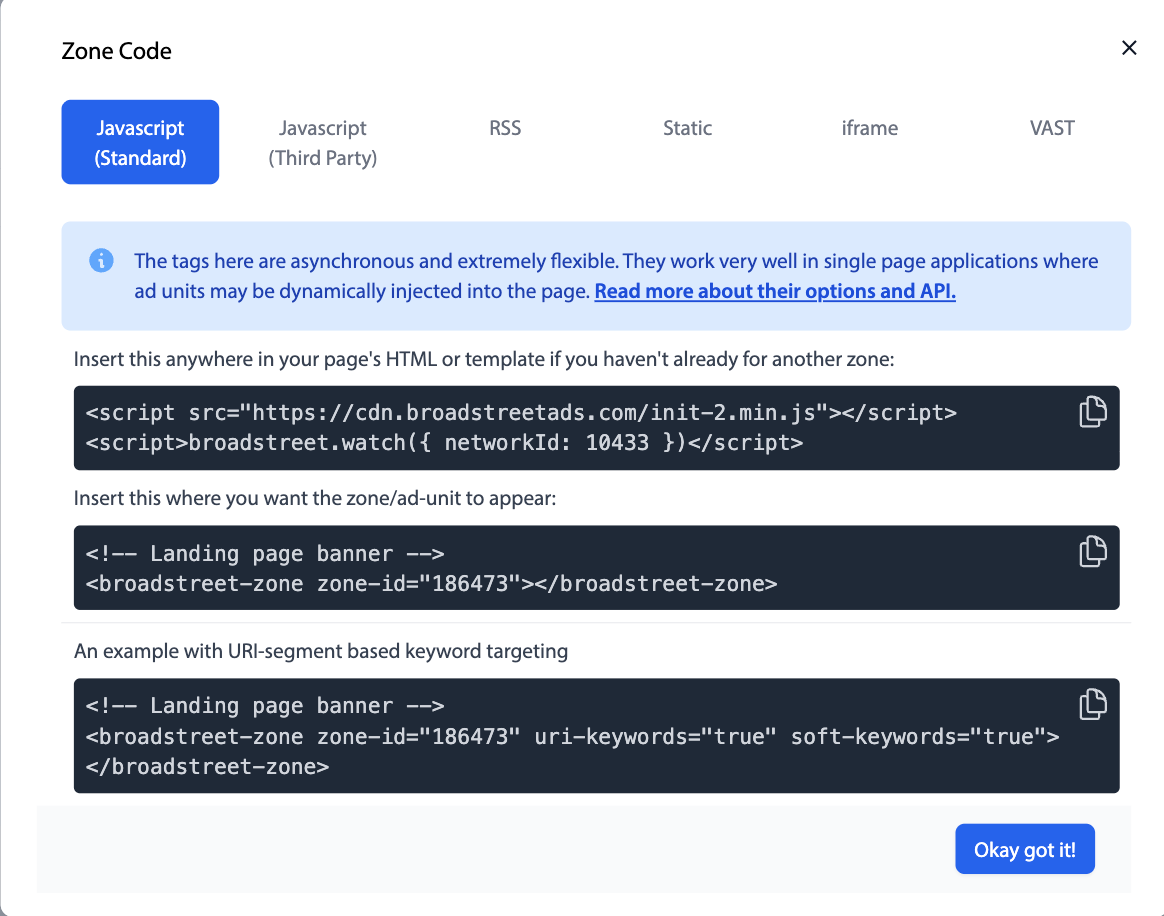
On the popup that appears, select Javascript (Standard) in the top nav bar, then look for the second dark box immediately under "Insert this where you want the zone/ad-unit to appear:" On the far right of this box is a copy files icon, which you can click on to copy this code.
2. How to inject HTML code from Broadstreet onto Ghost
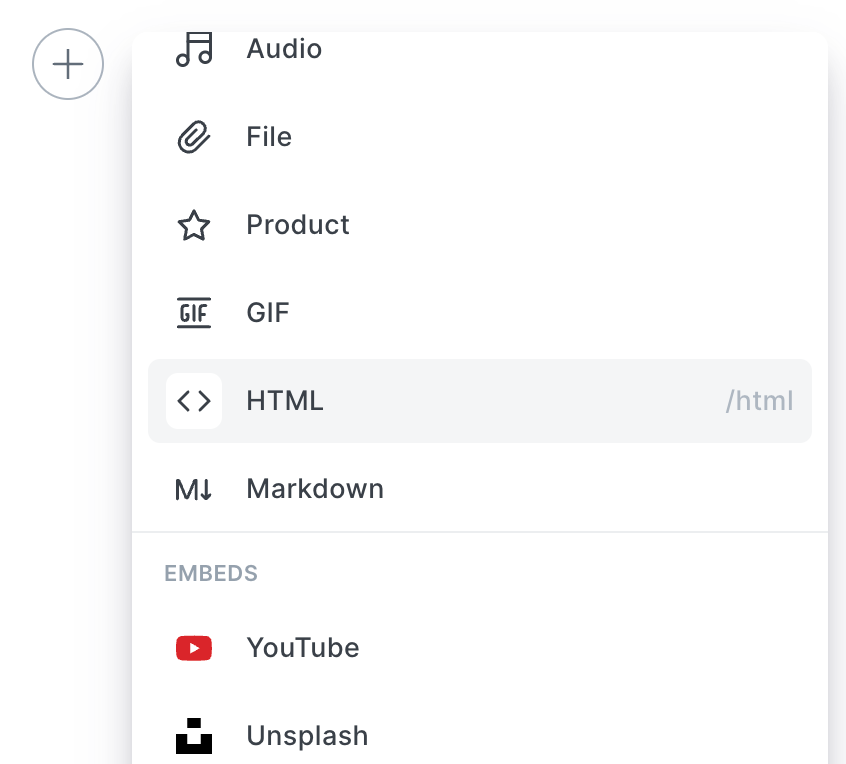
Now that the HTML code is on your clipboard, here's how you inject HTML code from Broadstreet onto a page on Ghost. Either you click on the + icon (a plus sign inside of a circle that appears in the left column when you hover your cursor there) to see the popup window pictured below, or just type "/html" on a new line to populate the green framed HTML code box show previously. Paste in the HTML code, and you're done!
Newsletter 1 (...480)
(To be filled in later)
Newsletter 2 (...481)
(To be filled in later)
Sidebar (...472)
Not a very useful zone, at the moment. I am trying to get it swapped out for Test Zone Name (...165) (update 6/17/26: I don't know the status of this at the moment.)
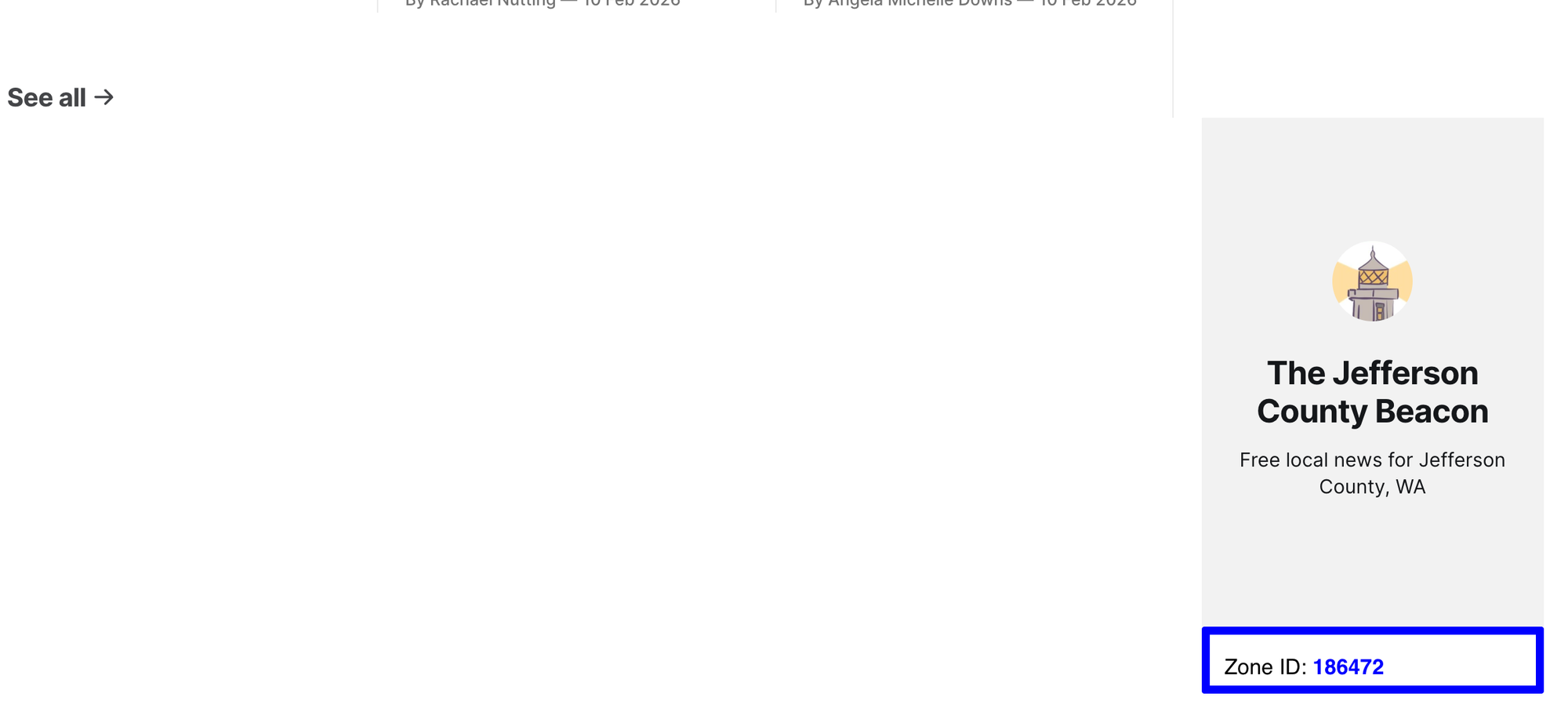
Test Zone Name (...165)
This is a temporary zone that I'm currently working with Broadstreet to solidify. Watch this space.
Ad Sizes/Content
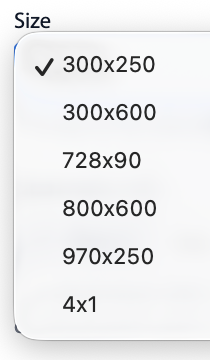
300 x 250
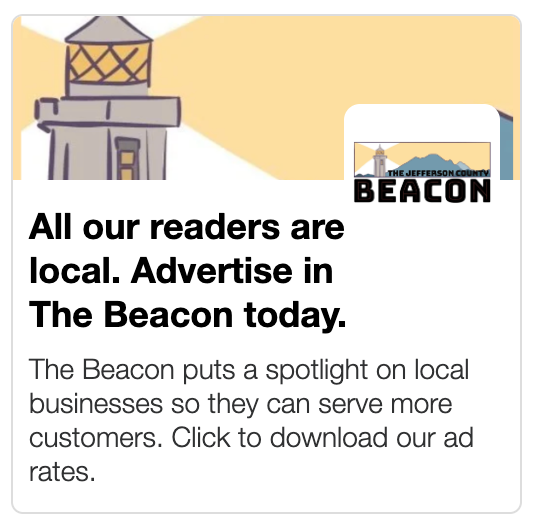
Layout Mistakes (and Best Practices)
Changing dimensions will usually mess up the image placement.
Best Practices: Sponsors provide art variations for any ad dimension.
Sponsors should provide multiple art variations (e.g., images with negative space on either side and above and below the subject) to give The Beacon enough flexibility to create ideal ads for any dimension.
Alternative Best Practice: Sponsors provide art specific to their ad dimension.
The client provides their own ad specifically for the ad dimensions they choose. (In the print world, this is called "camera-ready": the final ad couldn't be changed by the printer, which was beneficial to both sponsor and printer because if typos in the ad could not be attributed to the printer because tweaking was impossible.)
Headlines too long

Banner ads have much shorter text areas. Brevity is key.
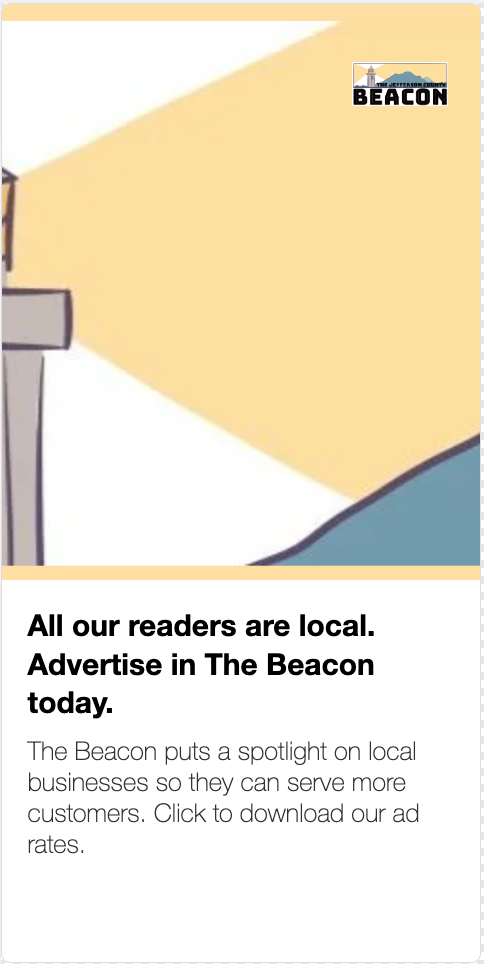
300 x 600
Tall vertical ad best suited for margin zones. Note how the logo is exactly as uploaded, with no forced white space on top an bottom like it's expecting a 1:1 image.
728 x 90
Banner ad with brief headline text and brief primary text. Ideal for horizontal art.

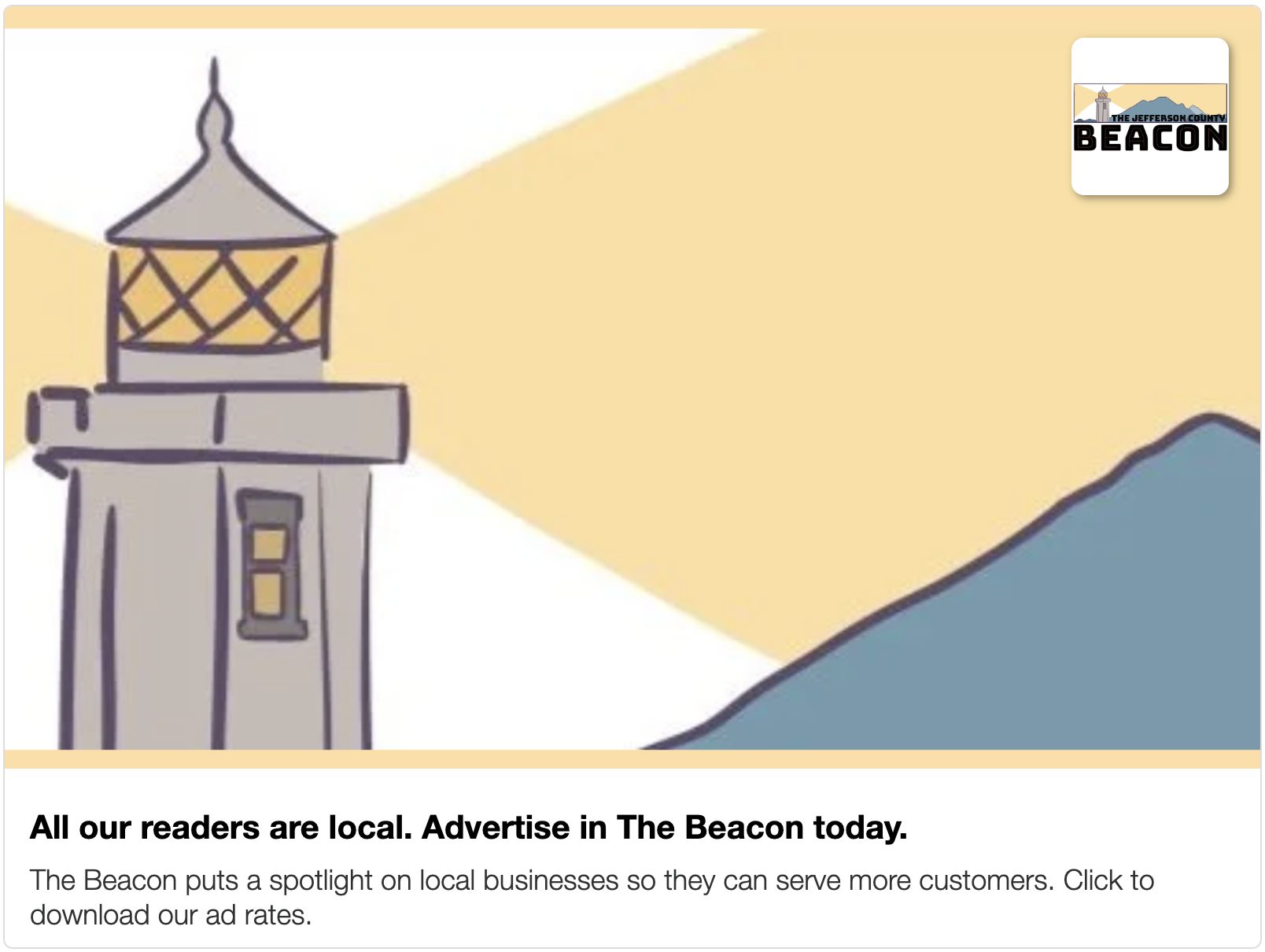
800 x 600
These are big premium ads, and the image can communicate lots of complicated information quickly. Note how a horizontal logo is shoehorned into a square slot at the top right.
Best Practices: use 1:1 art for logos, and 730 x 447 art for the main image without borders.
970 x 250
A premium horizontal big-ish ad. Best suited for horizontal images and horizontal logos. Ability to have more primary text than other ads.

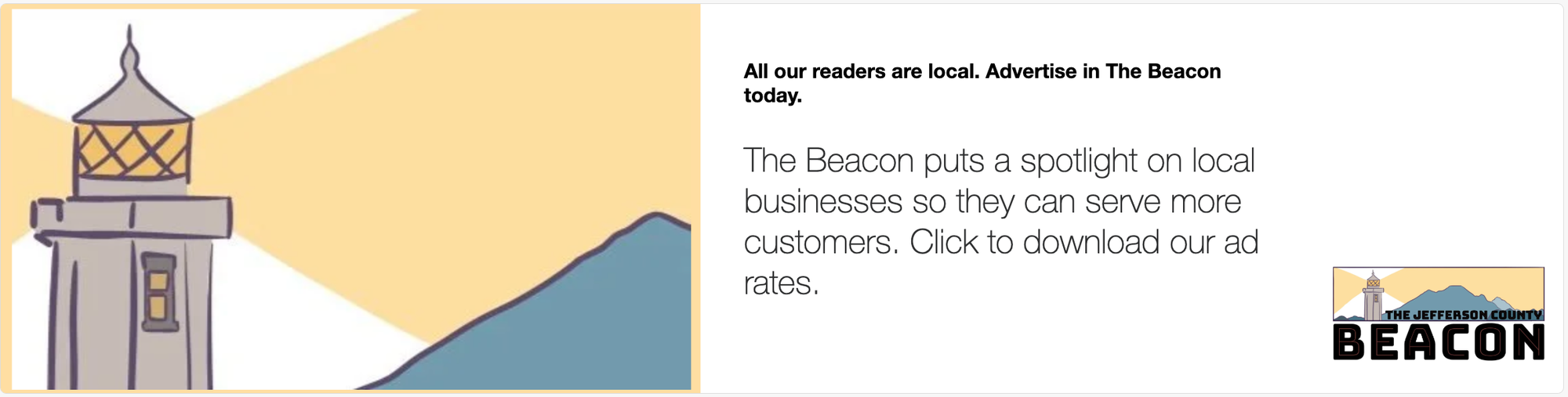
4:1
A large premium ad with more emphasis on the text. Headline text is in bold, but in a smaller font (e.g, ideal for "Civic Sponsor of The Beacon).
Advertising Guidelines
(To be filled in later)
Non-Profit Ad Limitations for The Beacon
(To be filled in later)
The Beacon's Advertising Philosophy
(To be filled in later)
Generating Reports for Sponsors
(To be filled in later)
Sponsor Payments
(To be filled in later)
How to Create an Ad Campaign
Video Walkthrough
(To be filled in later)
Snapshots
(To be filled in later)
Special Ad scenarios
(To be filled in later)
Single Article ads
(To be filled in later)
Category Page Ads
(To be filled in later)
Entire Site ads
(To be filled in later)
Time-Specific Ads
(To be filled in later)
Legal Restrictions To know About
(To be filled in later)
Reference Links
Broadstreet Login page
Login page. (More details to come)
Ad Rate Sheet download
(To be filled in later)
Sponsor Signup Google Form
(To be filled in later)